Driver Quick Instructions
Everything you need to know to get started with ShipLocate
Mandatory Load Tracking
ShipLocate is required by the shipper for real-time load tracking.
The app must be installed and active for the entire trip.
Watch: Full Driver Setup Guide
Install & Login
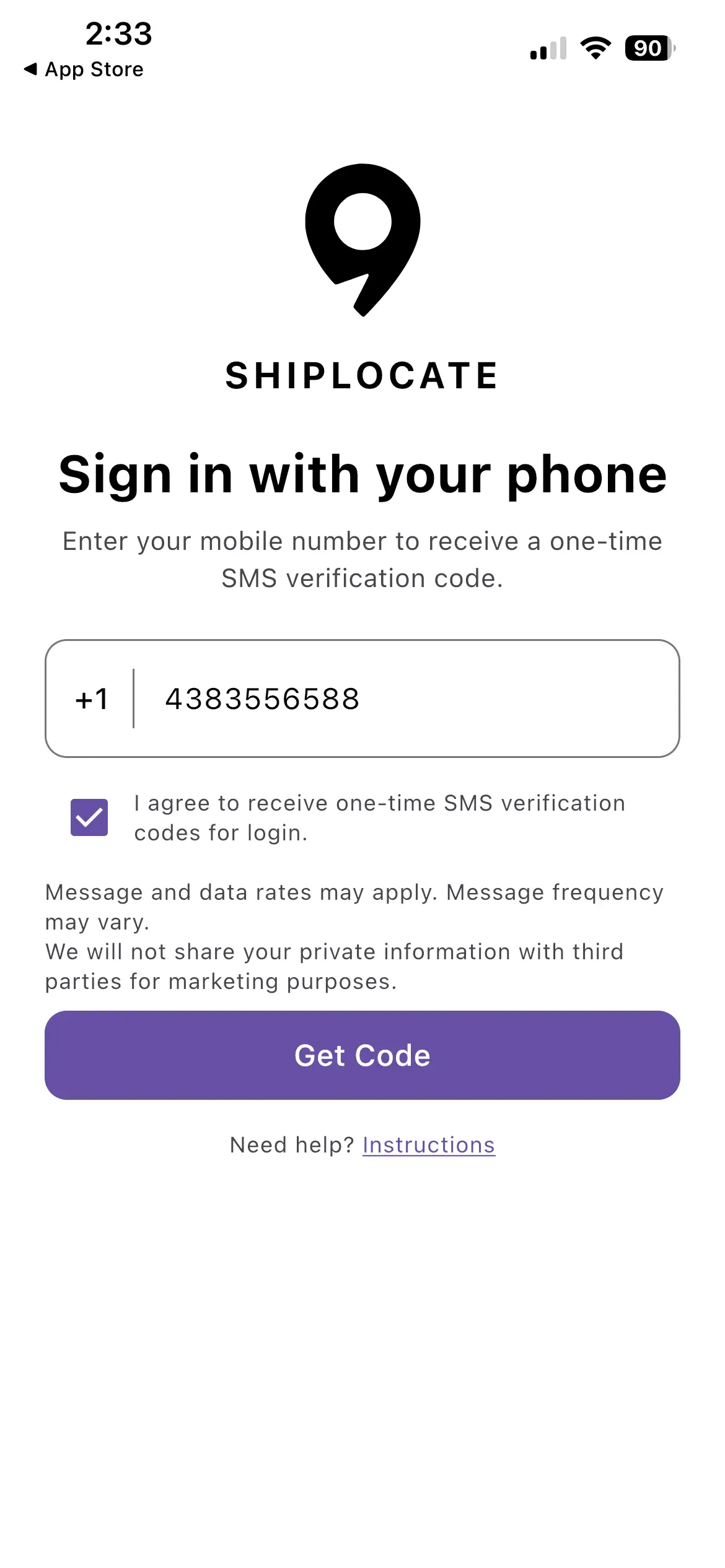
- Download ShipLocate from the App Store or Google Play
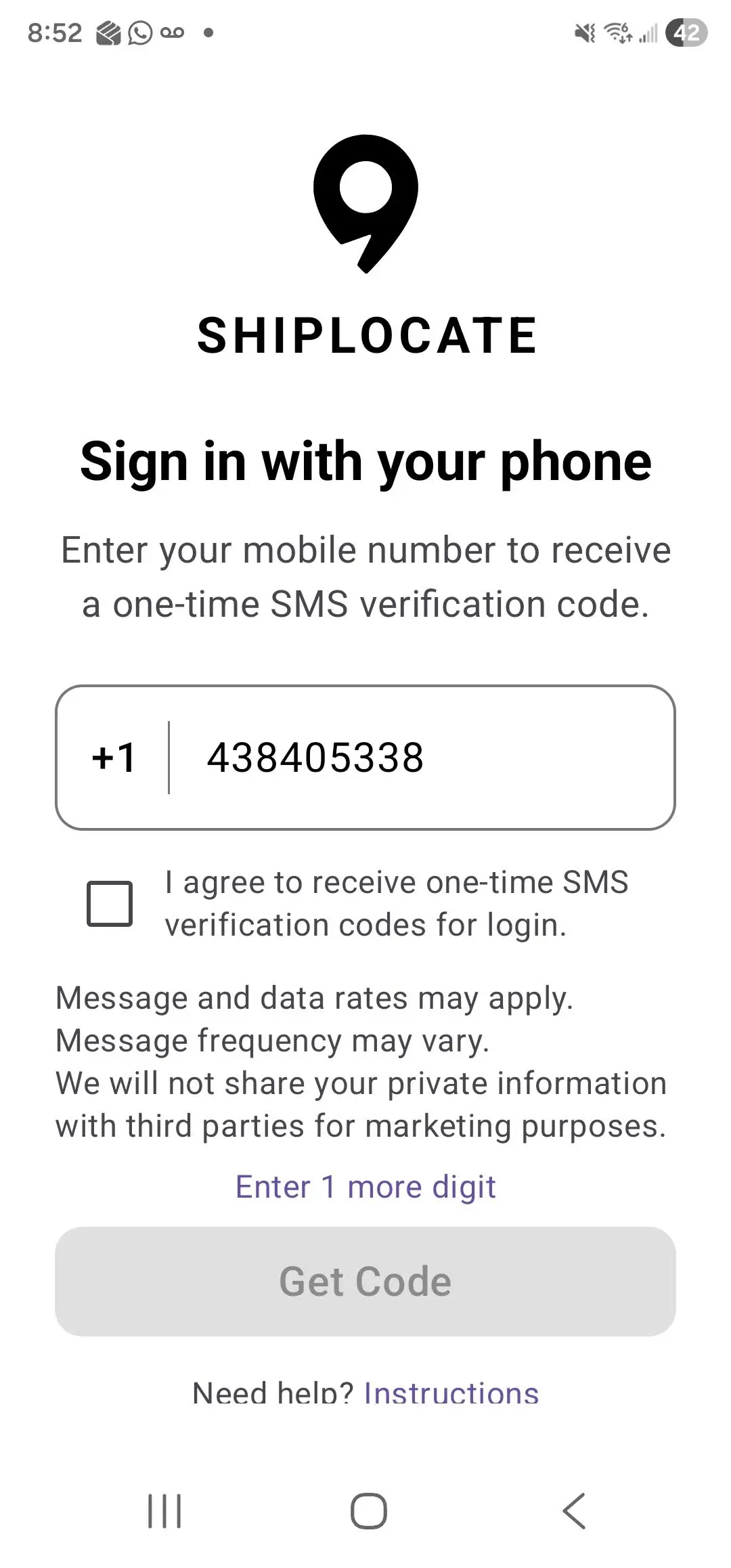
- Open the app and enter your phone number
- Check the SMS consent checkbox
- Tap Get Code
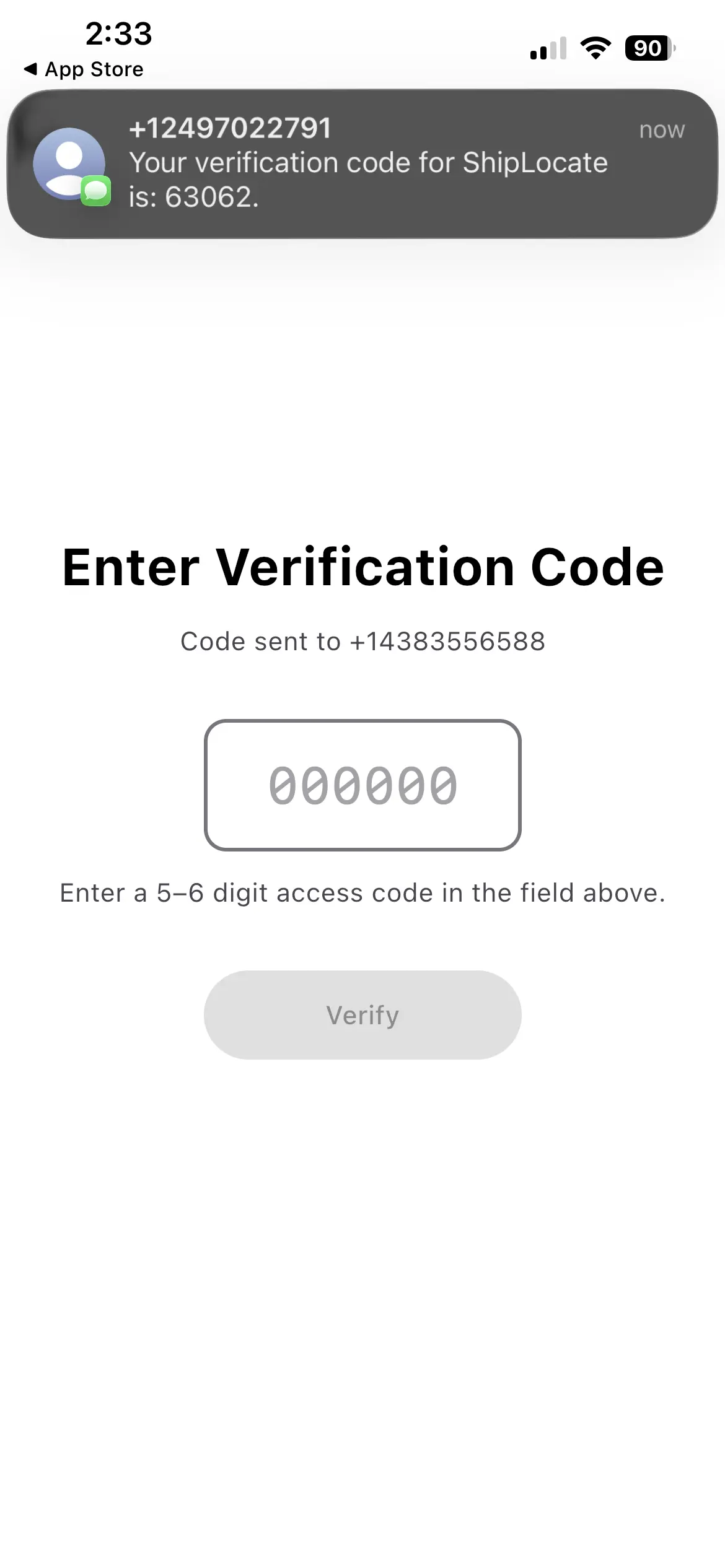
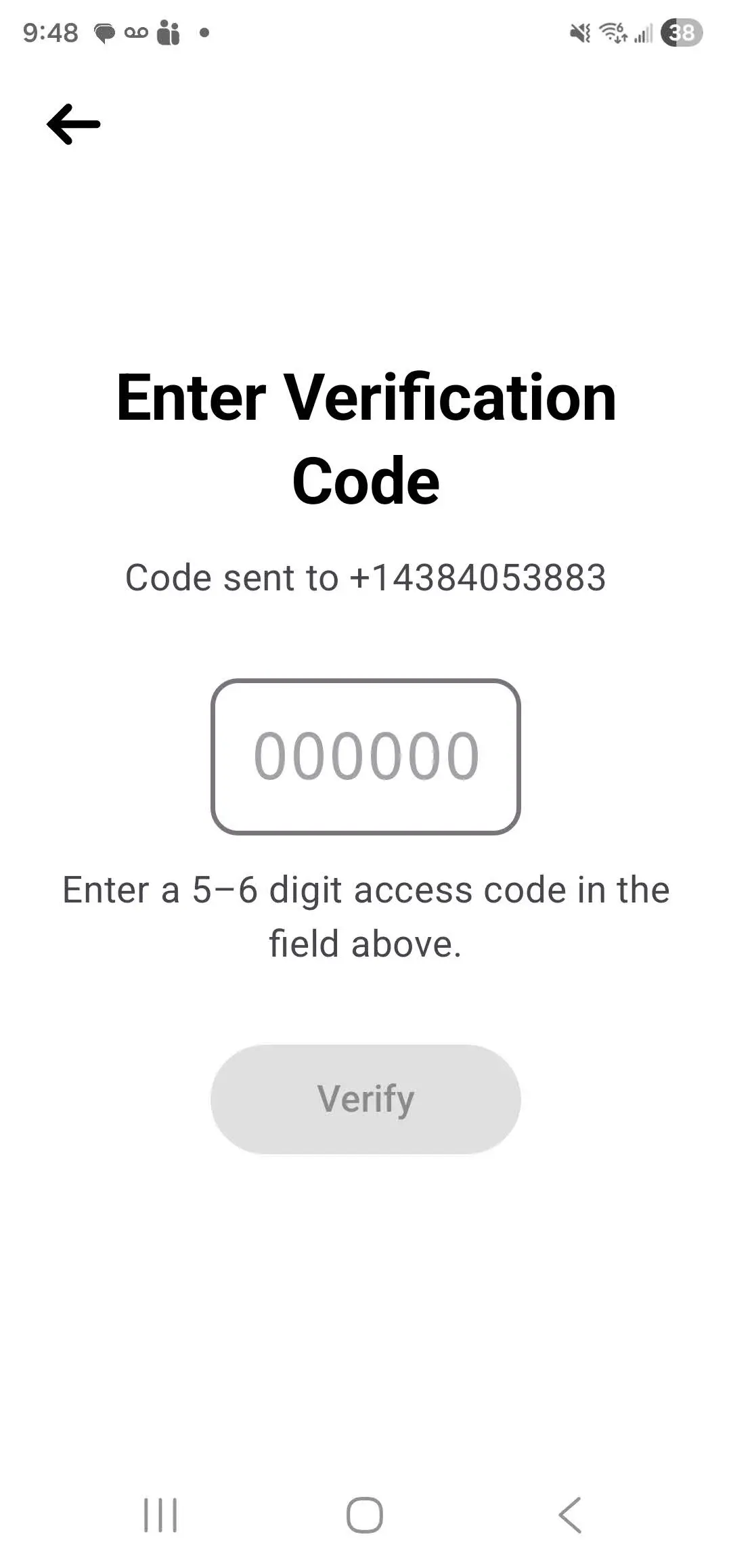
- Enter the 5-6 digit verification code you received
- Tap Verify
Allow Required Permissions
Before accepting any load, allow ALL permissions when prompted. Tracking will NOT work if any permission is denied.
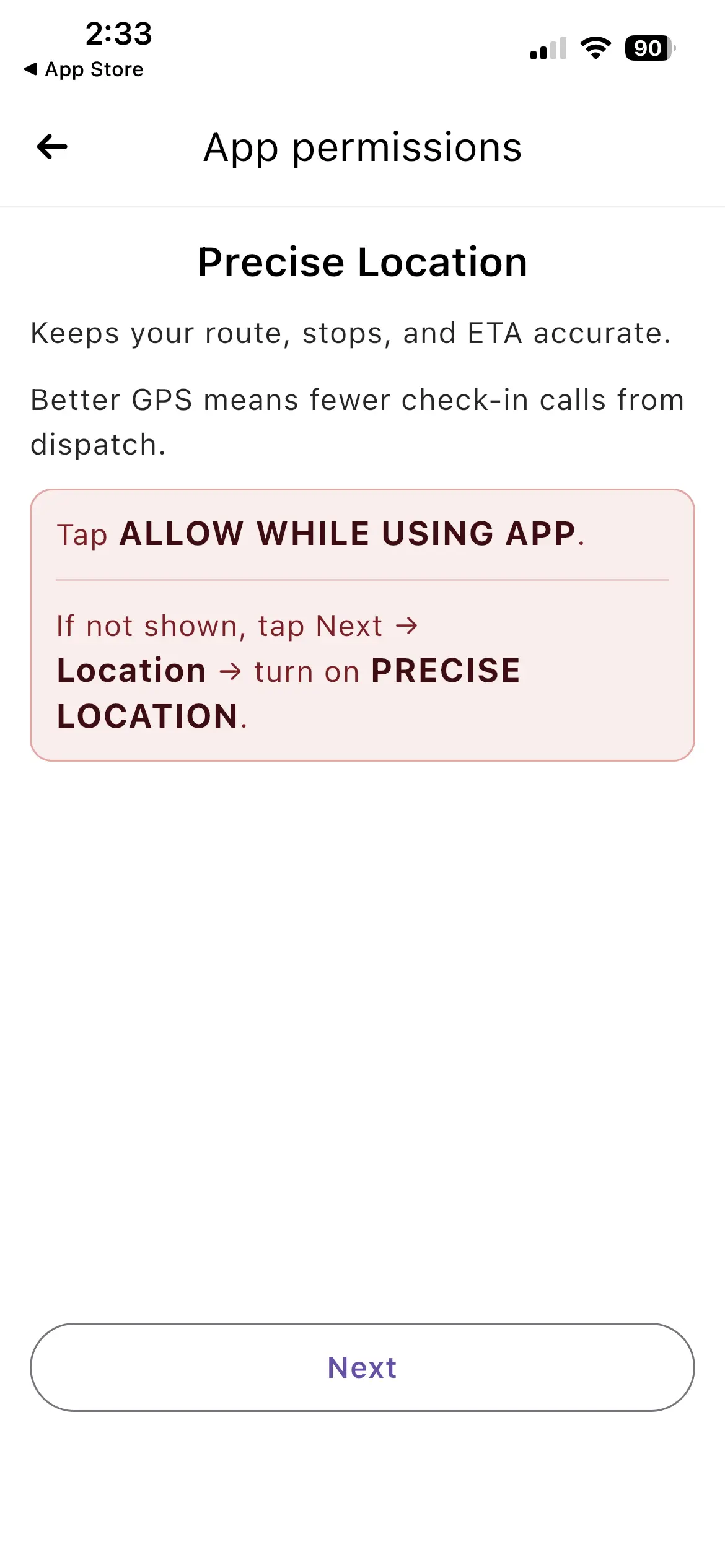
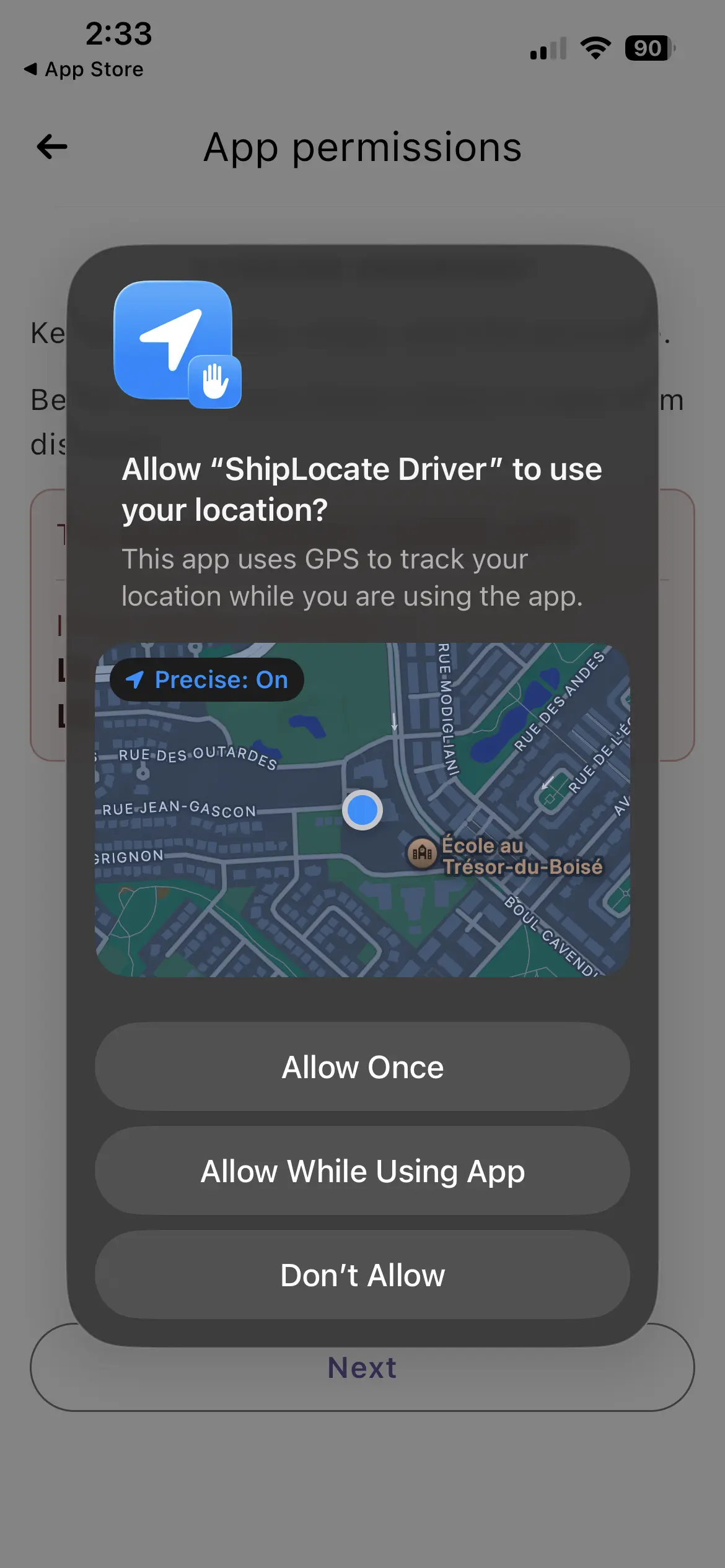
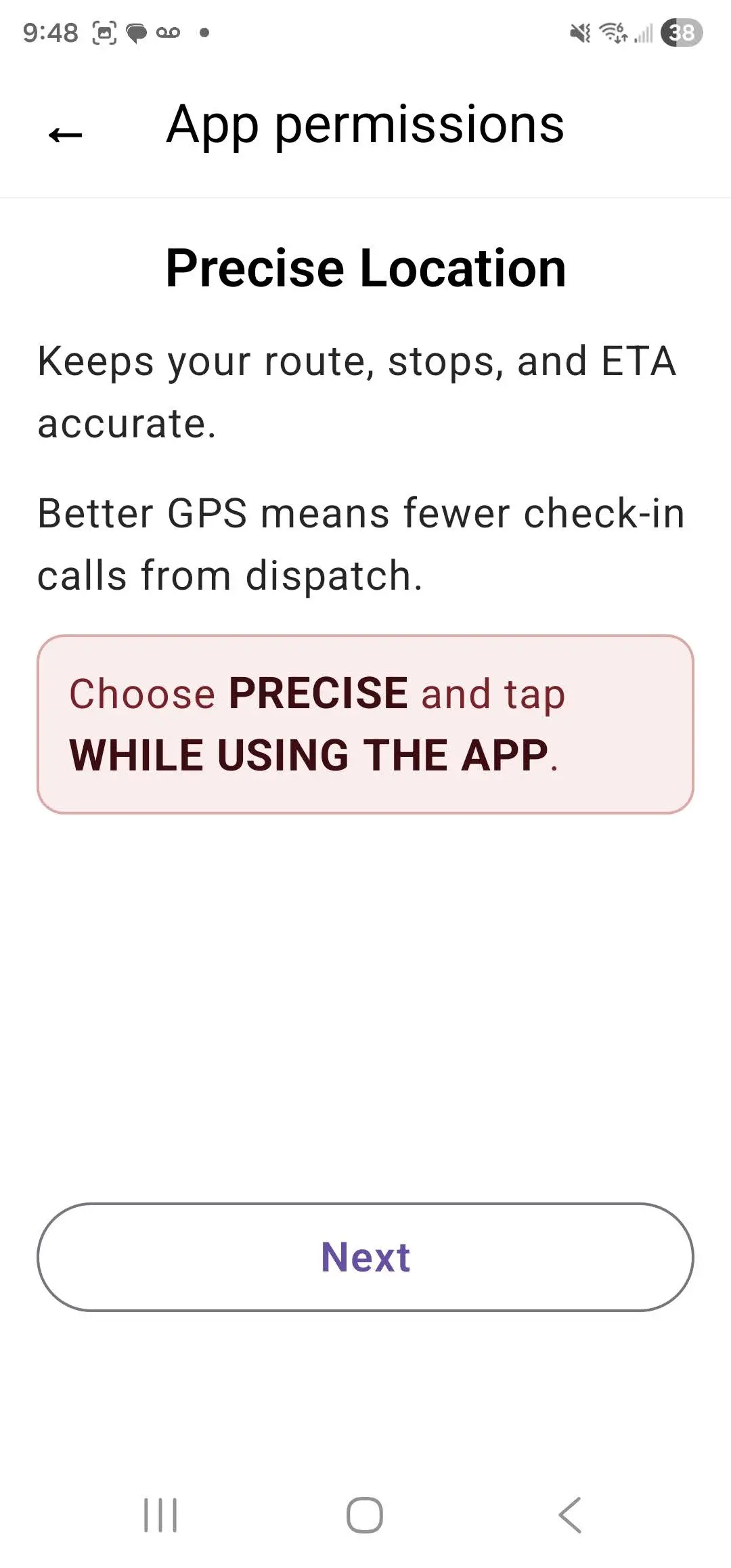
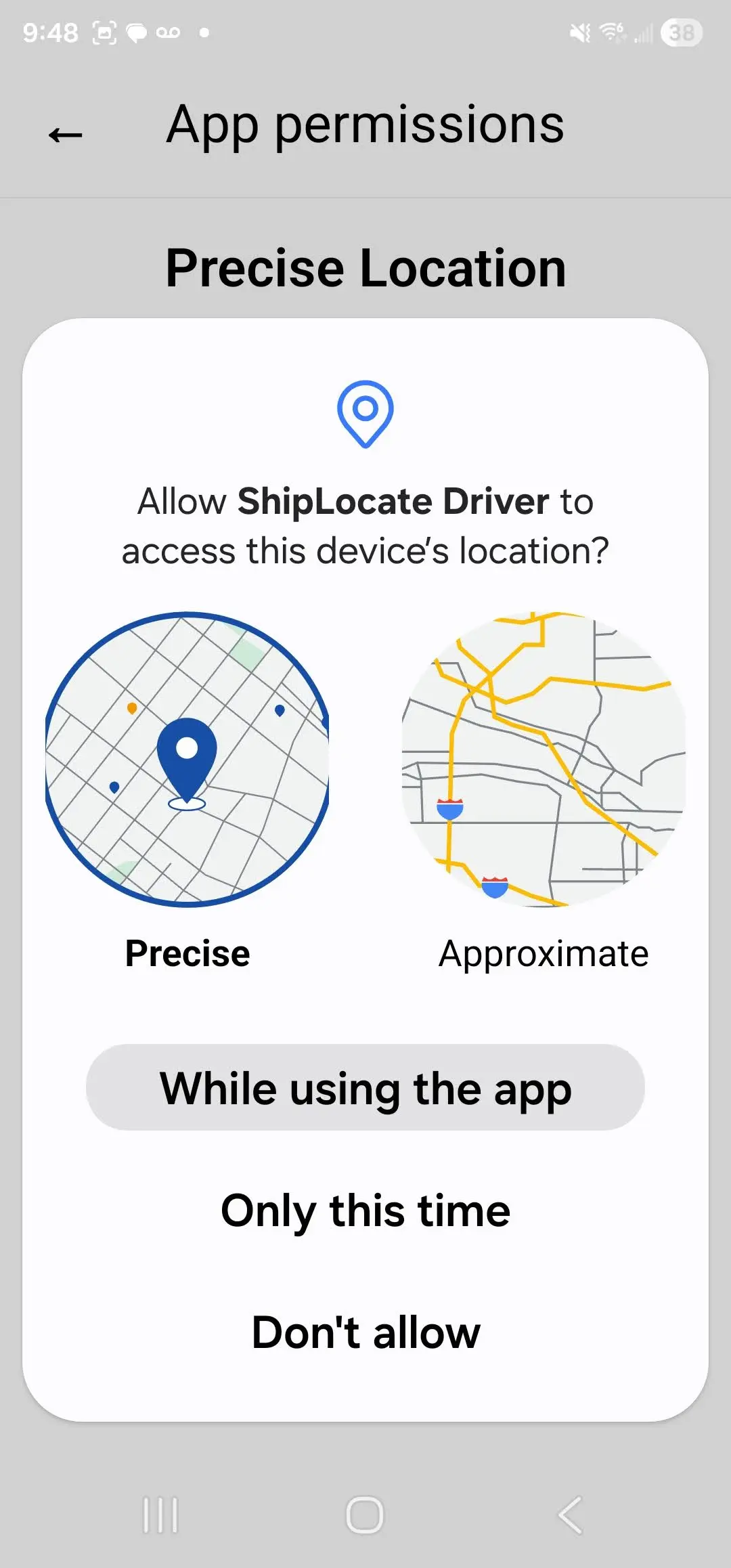
Location (Precise)
Choose PRECISE and tap Allow While Using App.
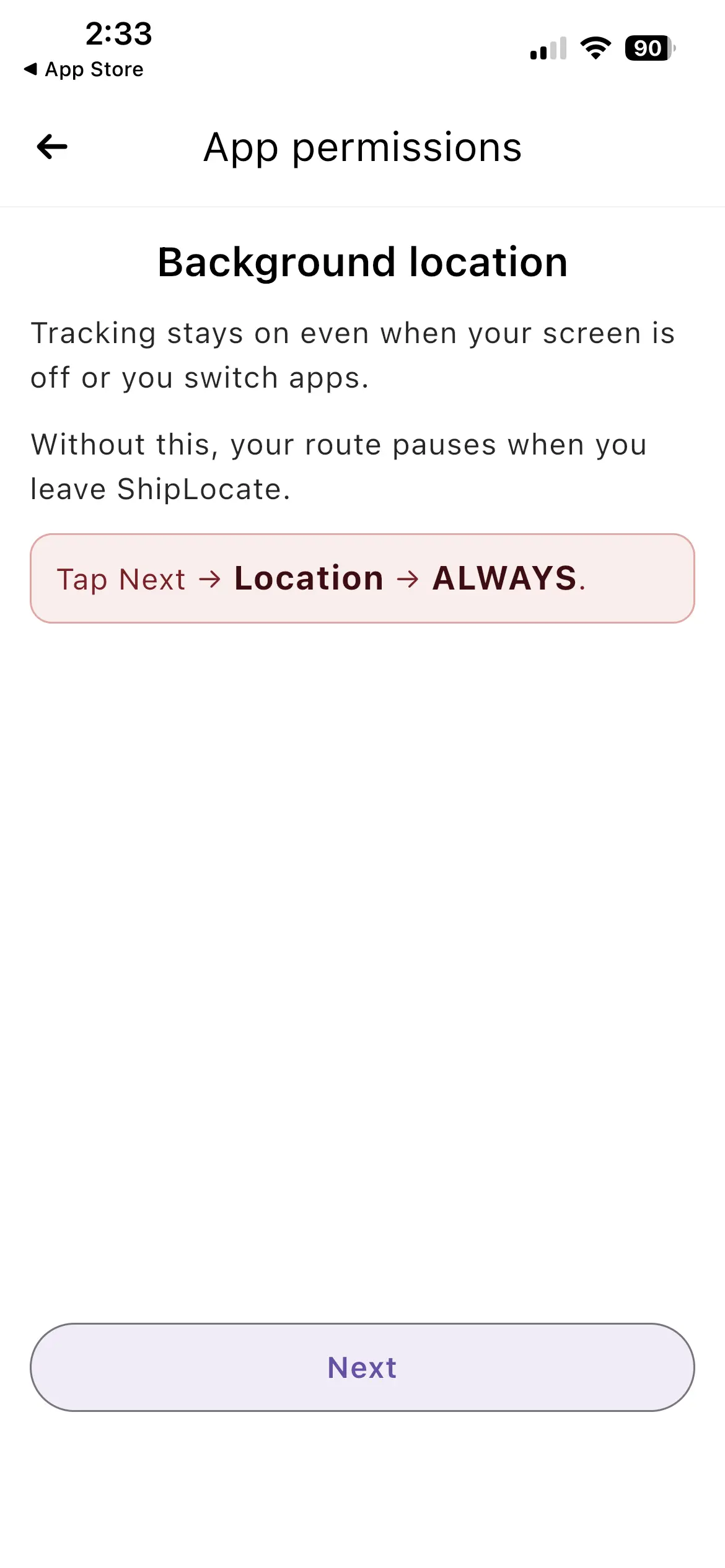
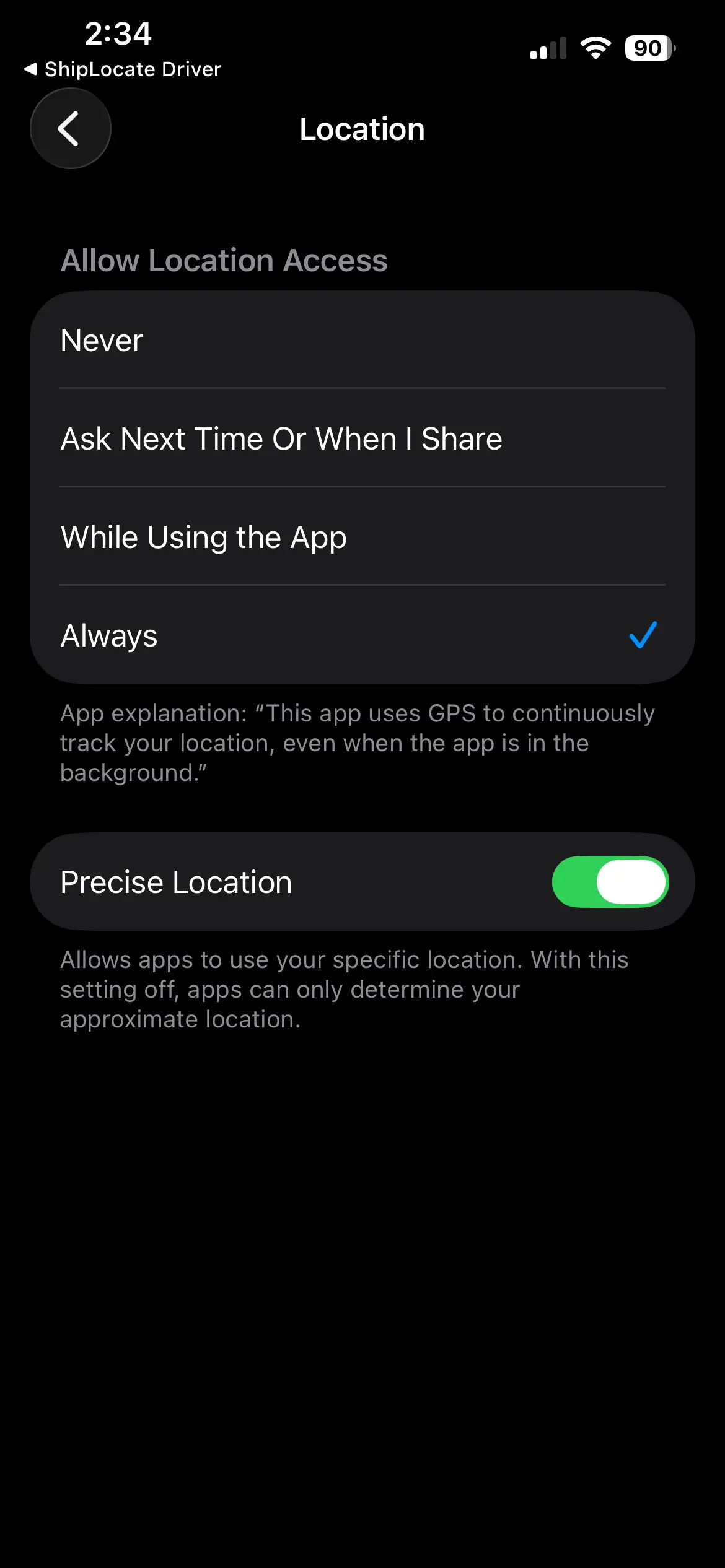
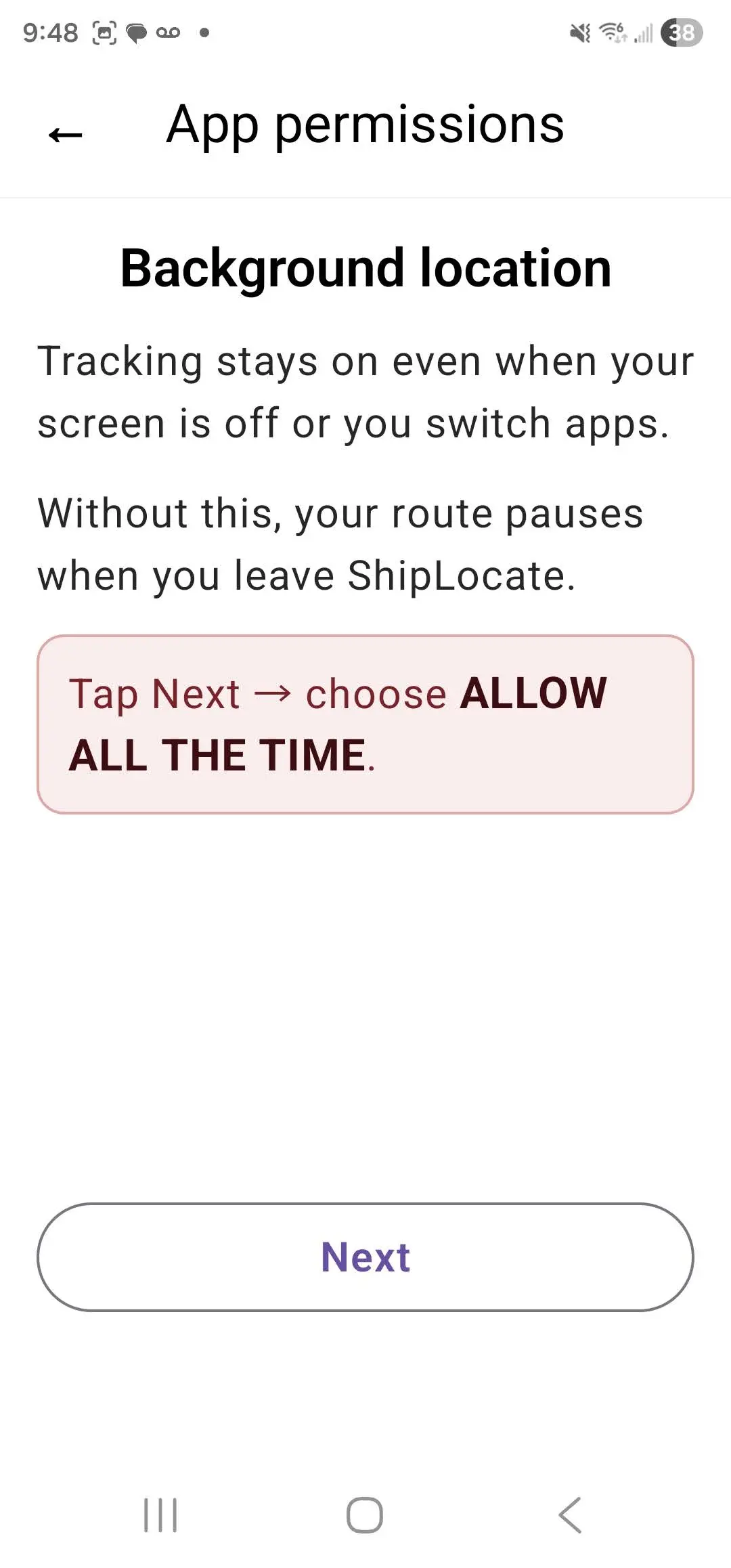
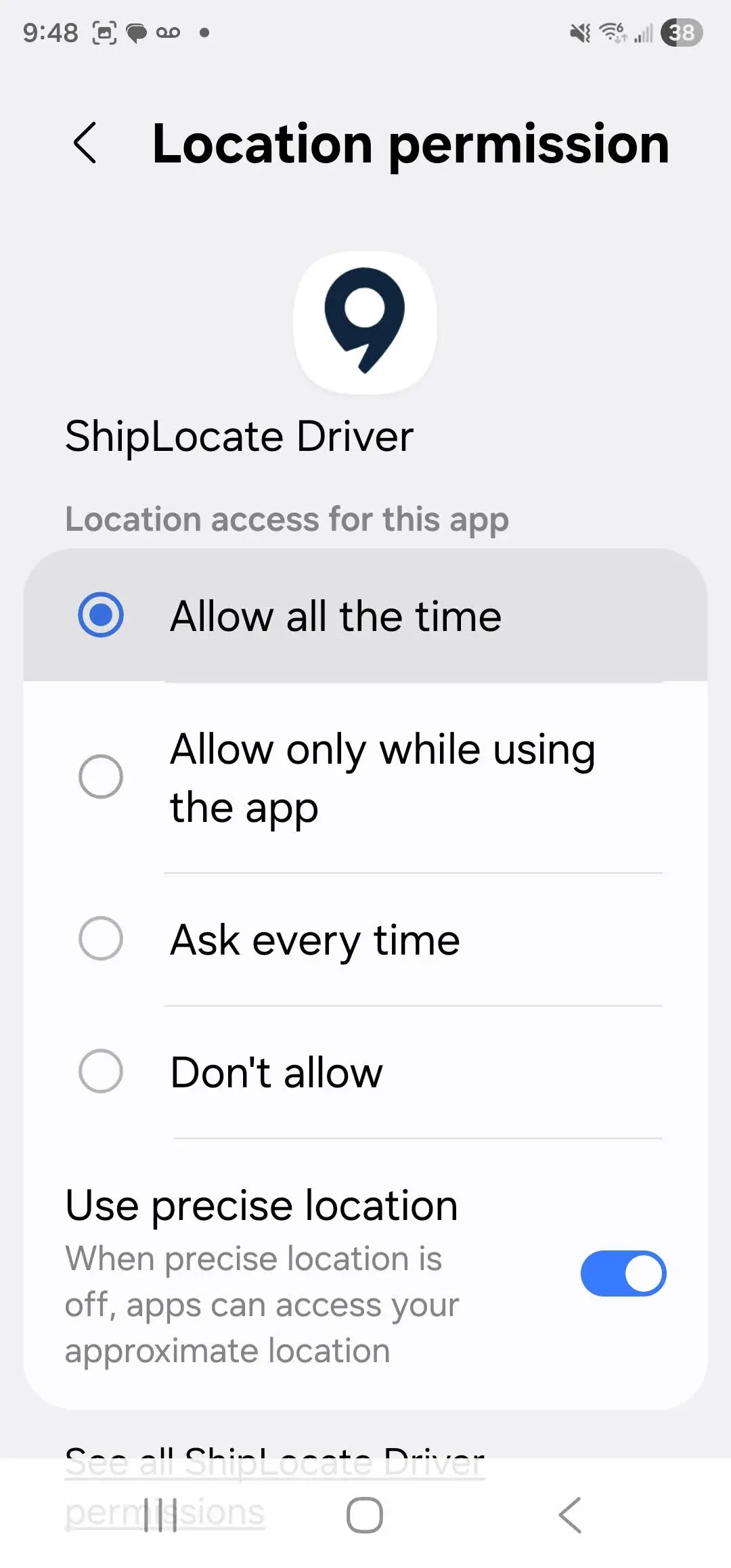
Background Location
Tap Next → choose Allow All the Time (Android) or Always (iOS). Without this, tracking pauses when you leave the app.
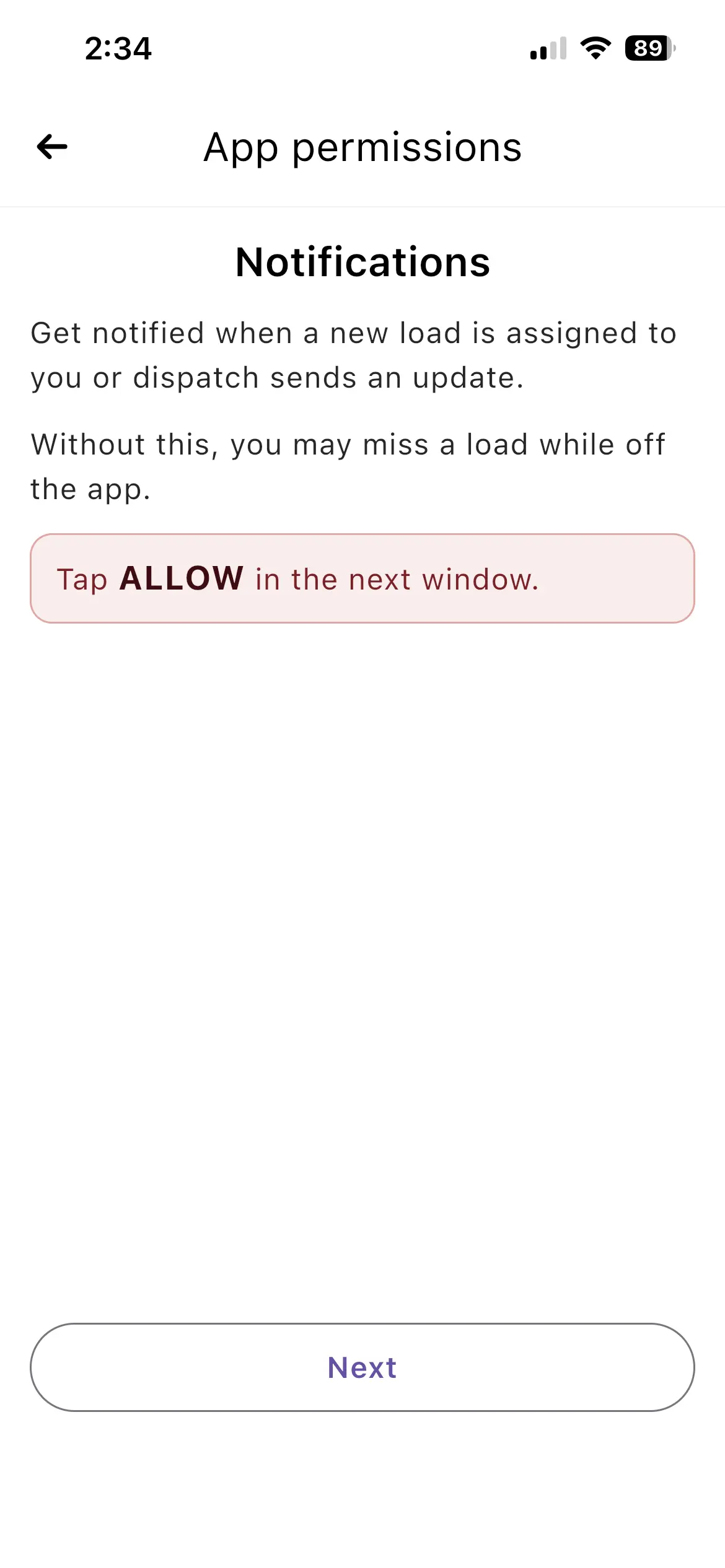
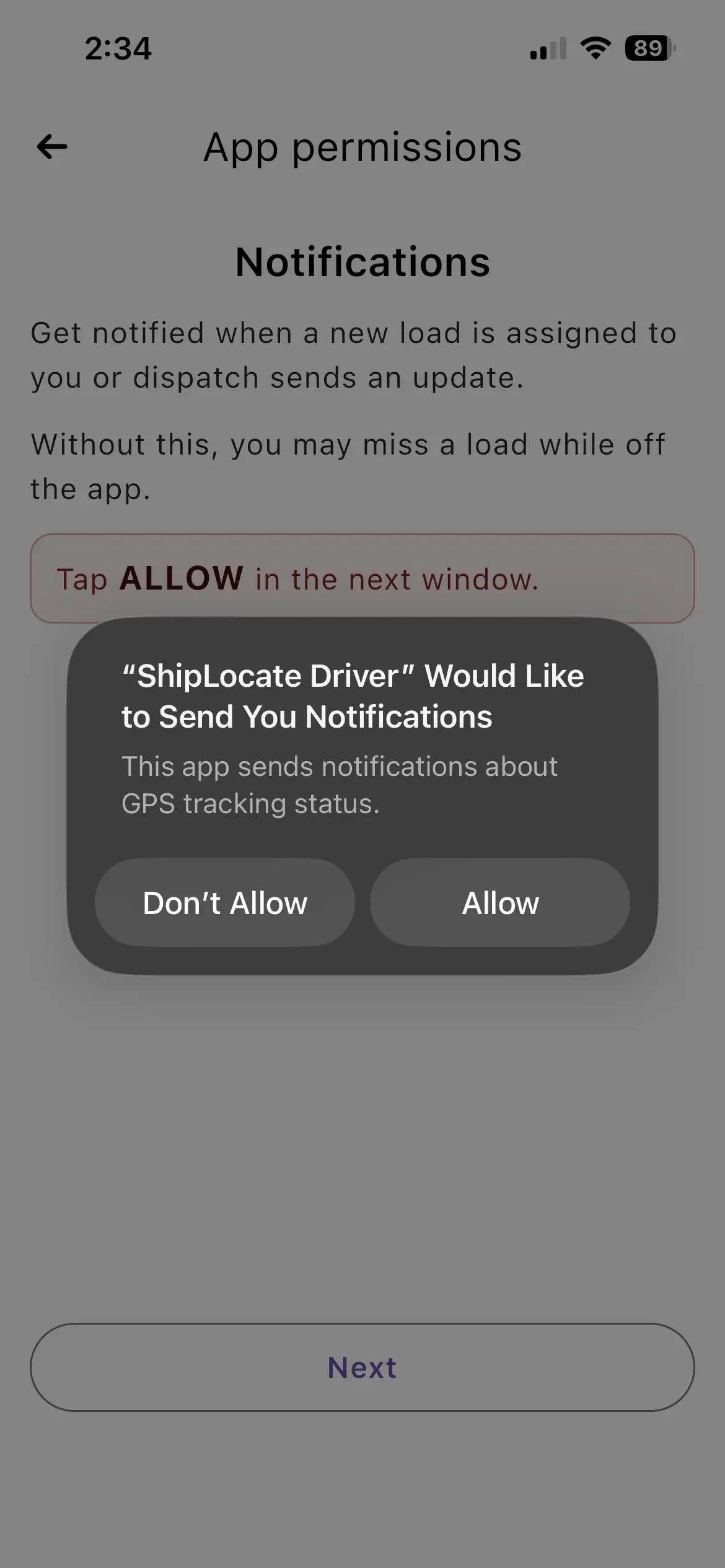
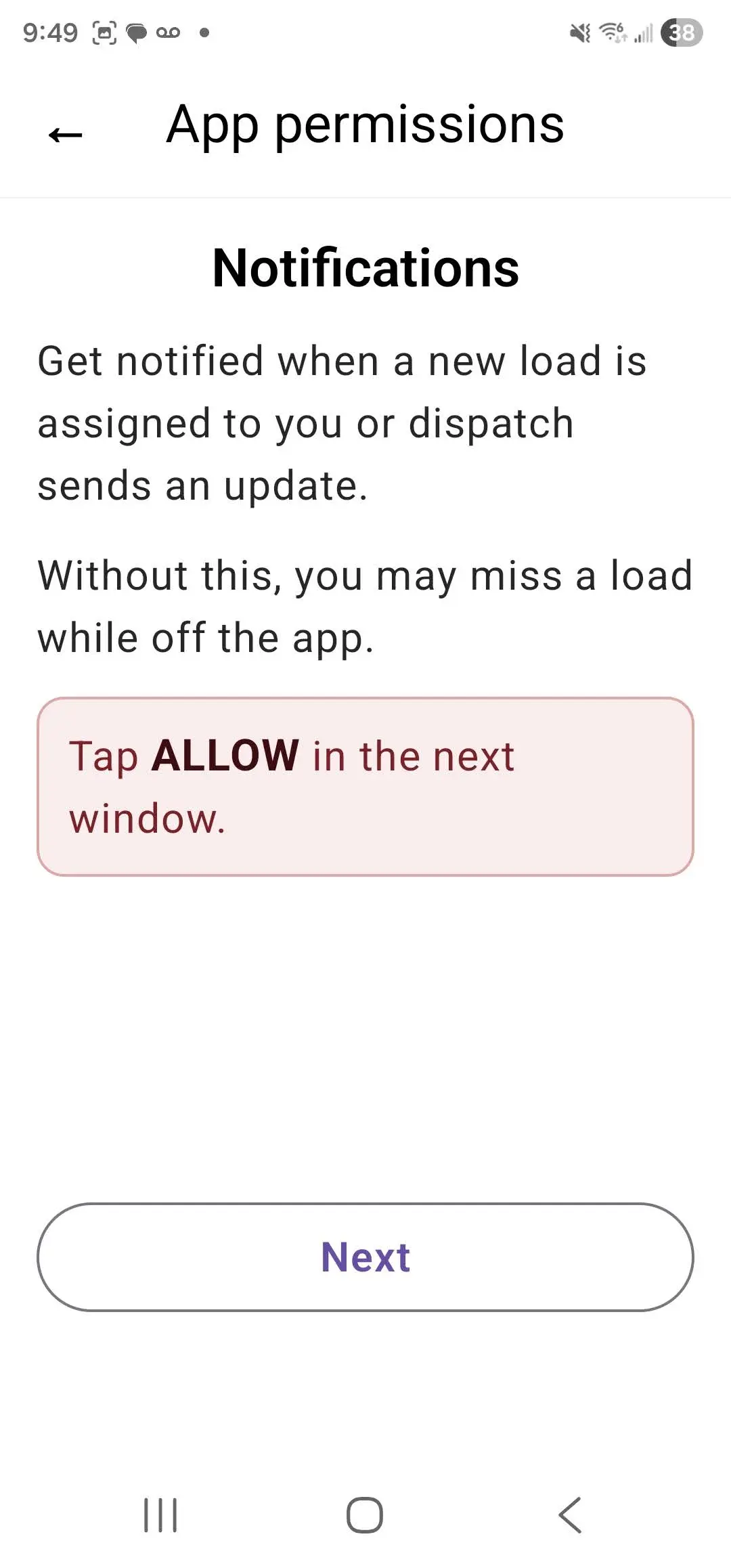
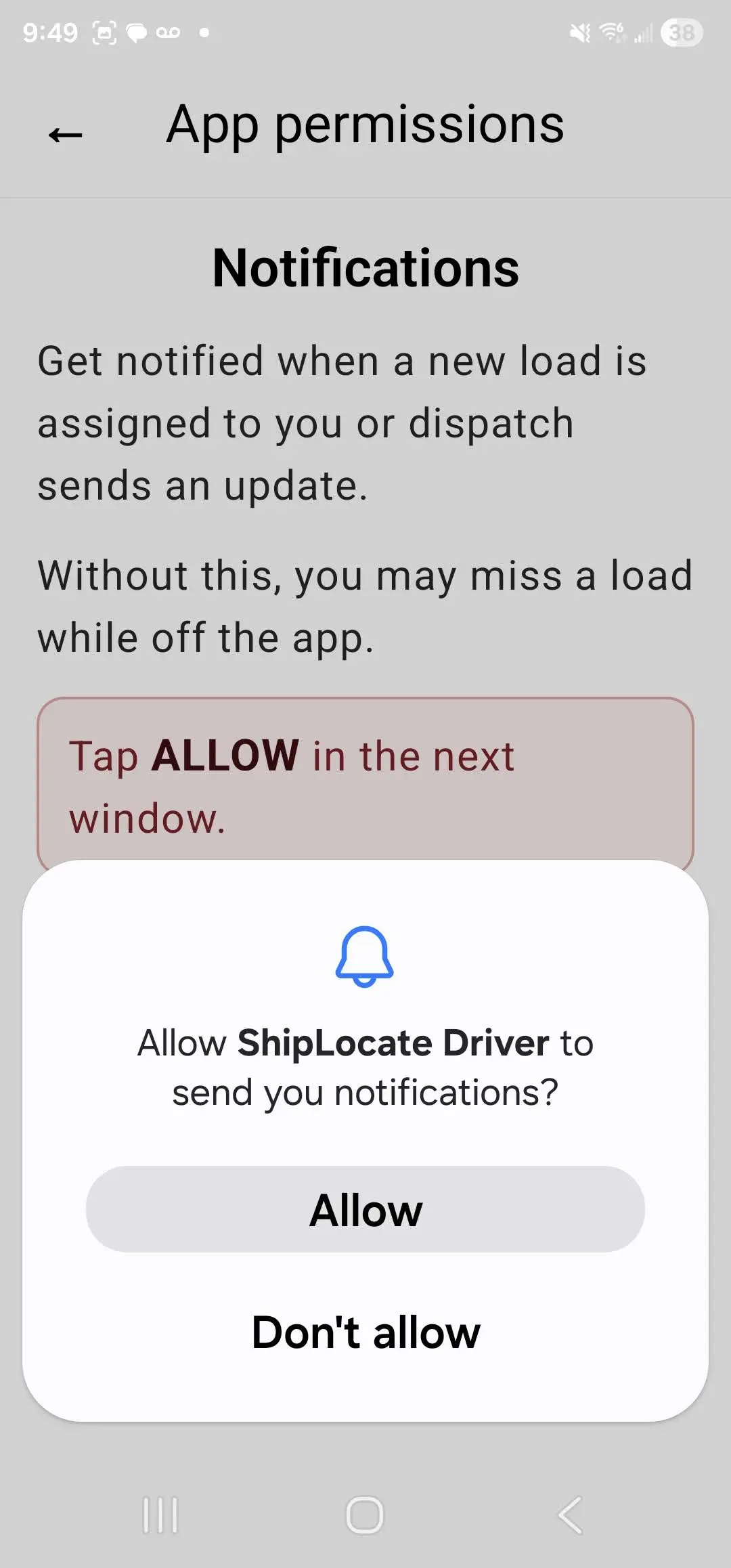
Notifications
Tap Allow when prompted. Without this, you may miss a new load assignment.
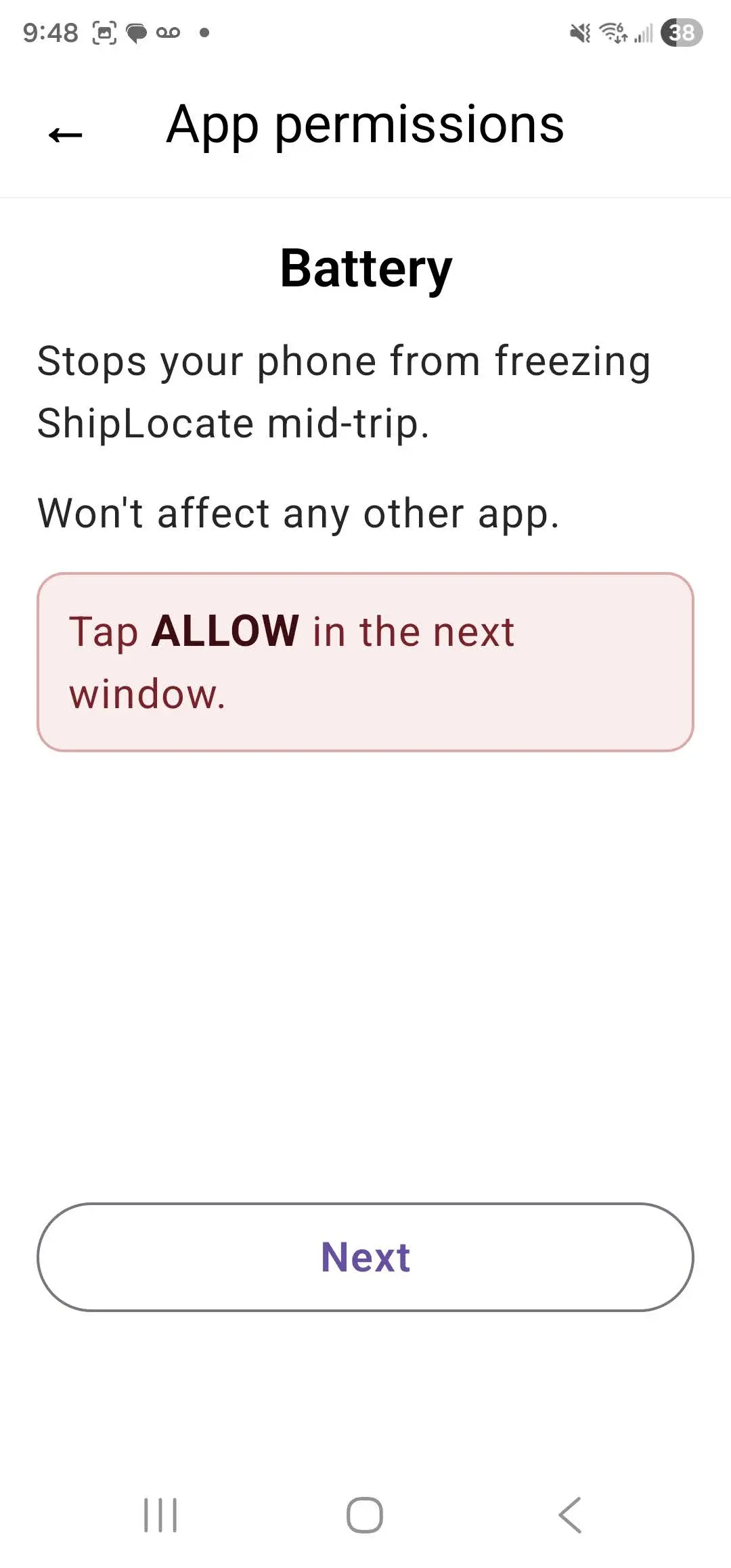
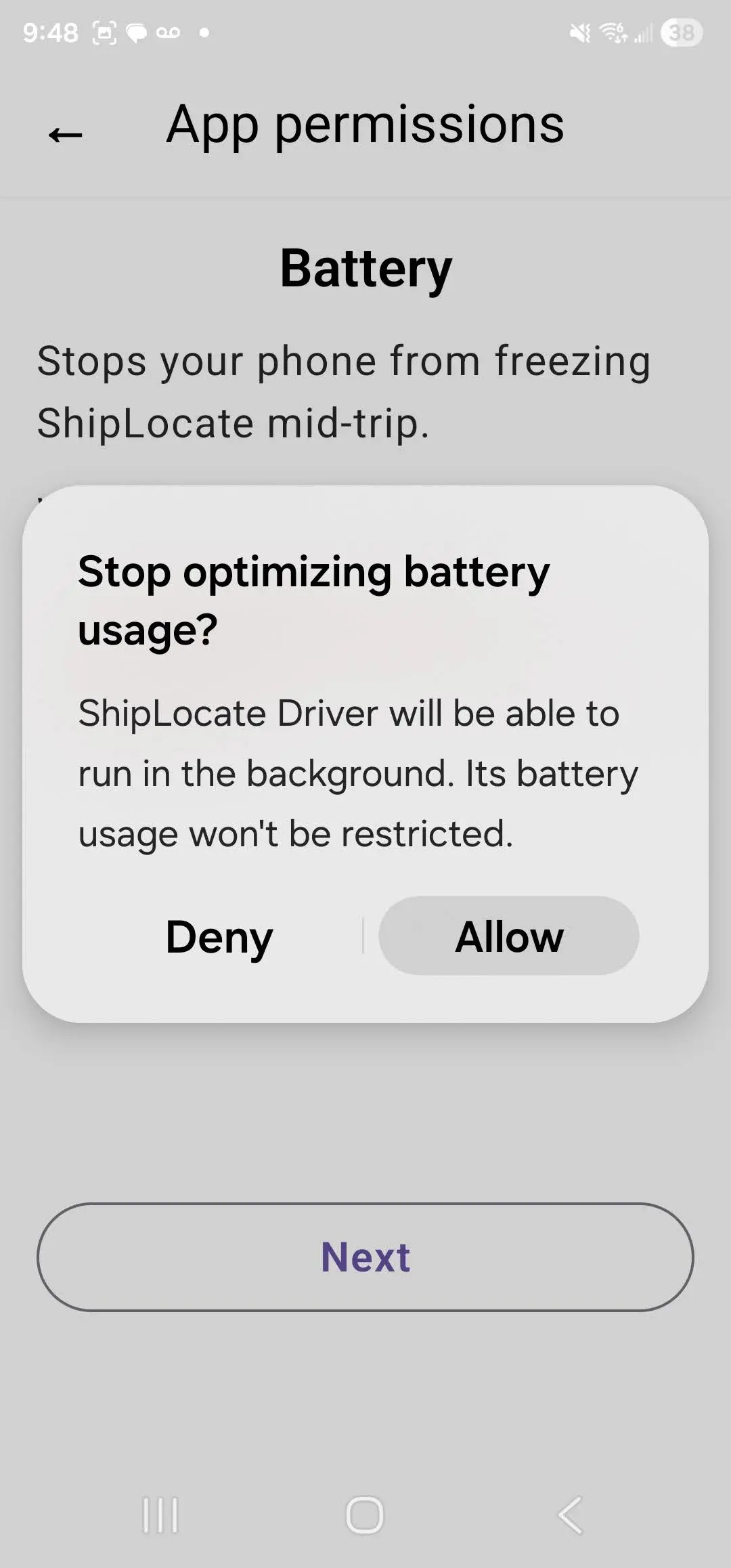
Battery (Android only)
Android only: Tap Allow to prevent your phone from stopping ShipLocate mid-trip.
Critical Warning
If permissions are denied, tracking will NOT work!
Accept the Load
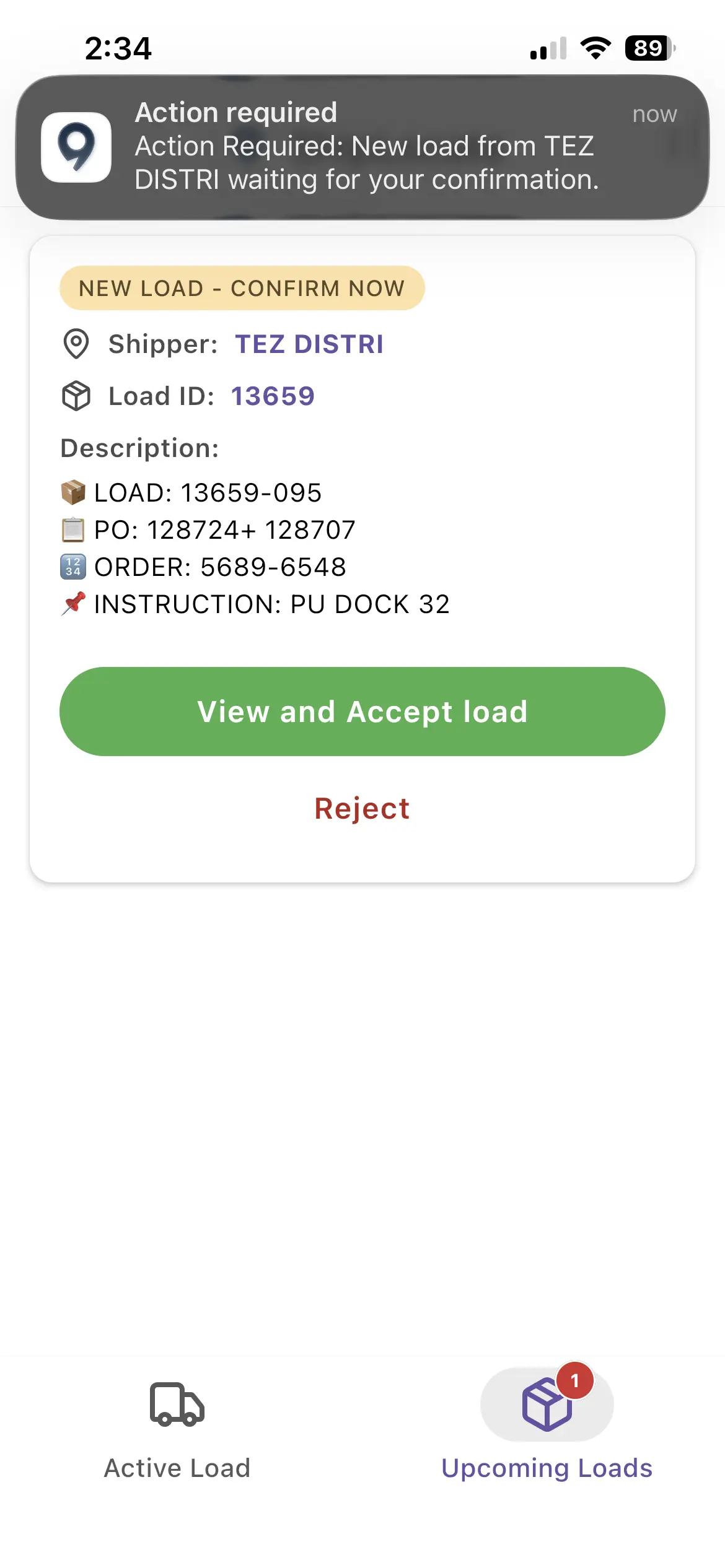
- When a load is assigned, you will receive a push notification
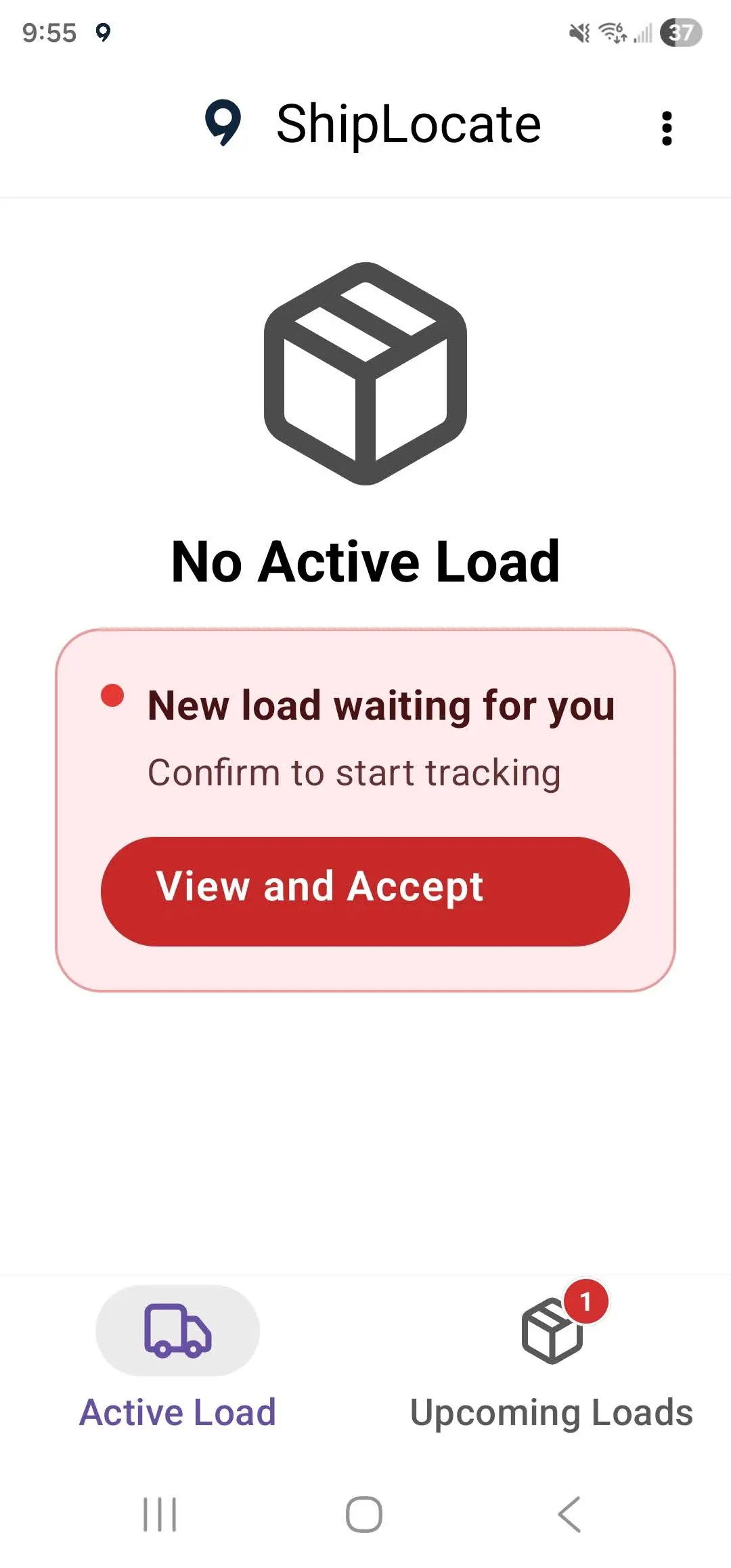
- Open the app - you will see "New load waiting for you"
- Tap View and Accept
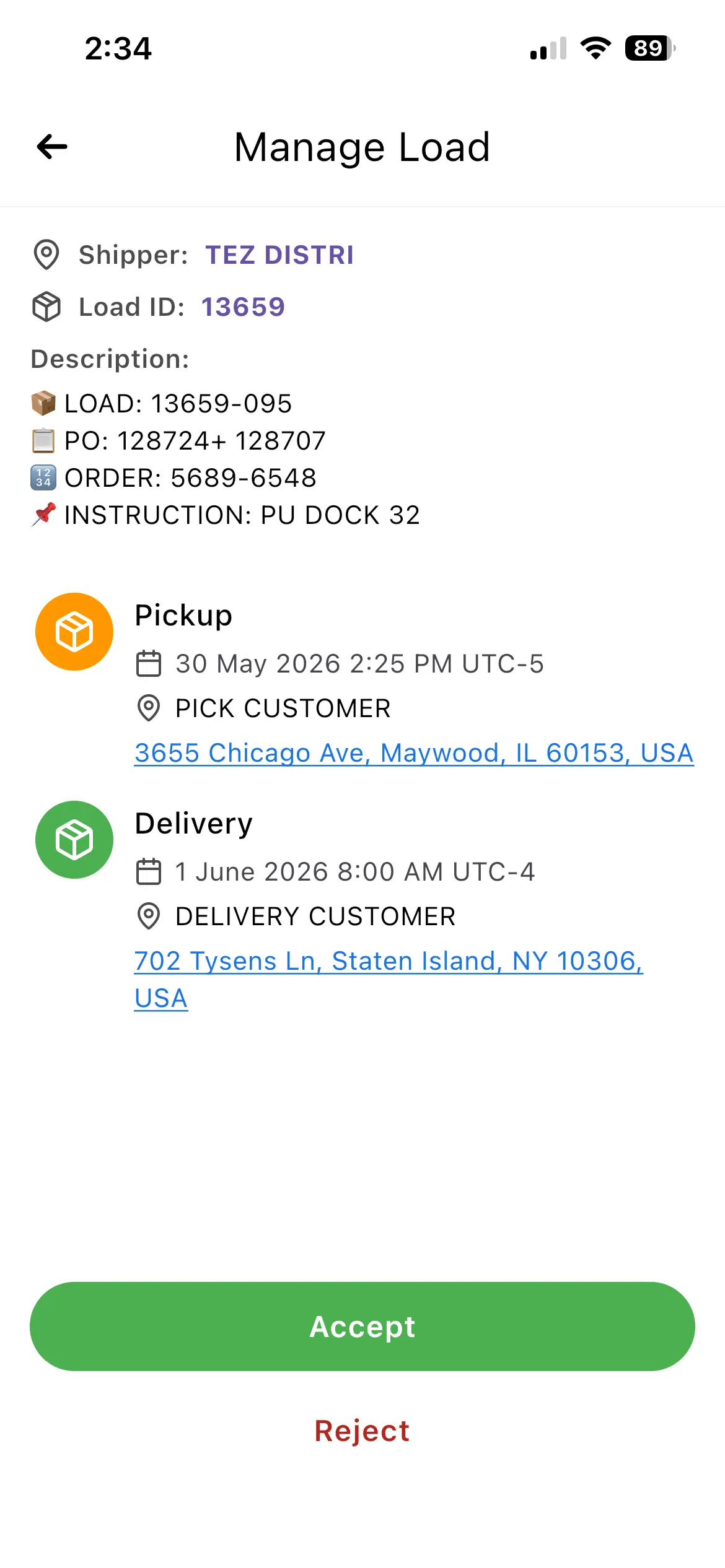
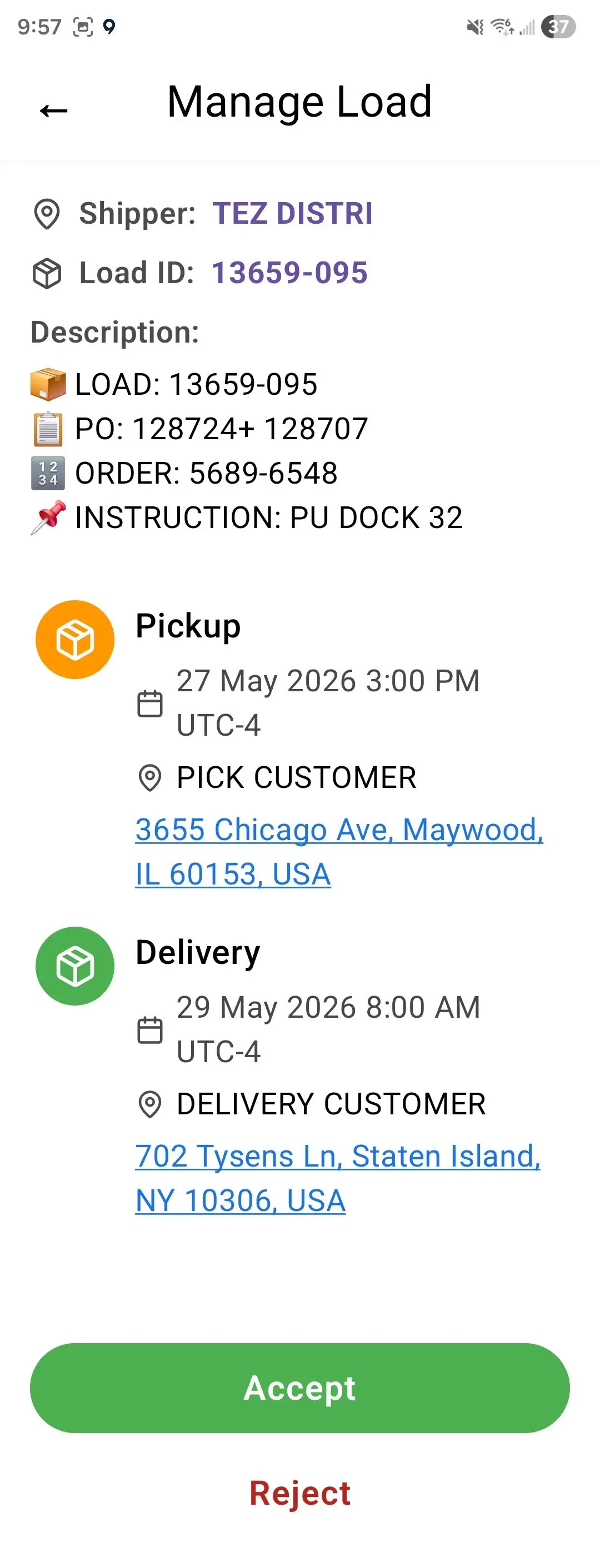
- Review the load details: Shipper, Load ID, Pickup and Delivery locations
- Tap Accept to confirm
- On the confirmation screen tap Accept again - tracking starts automatically
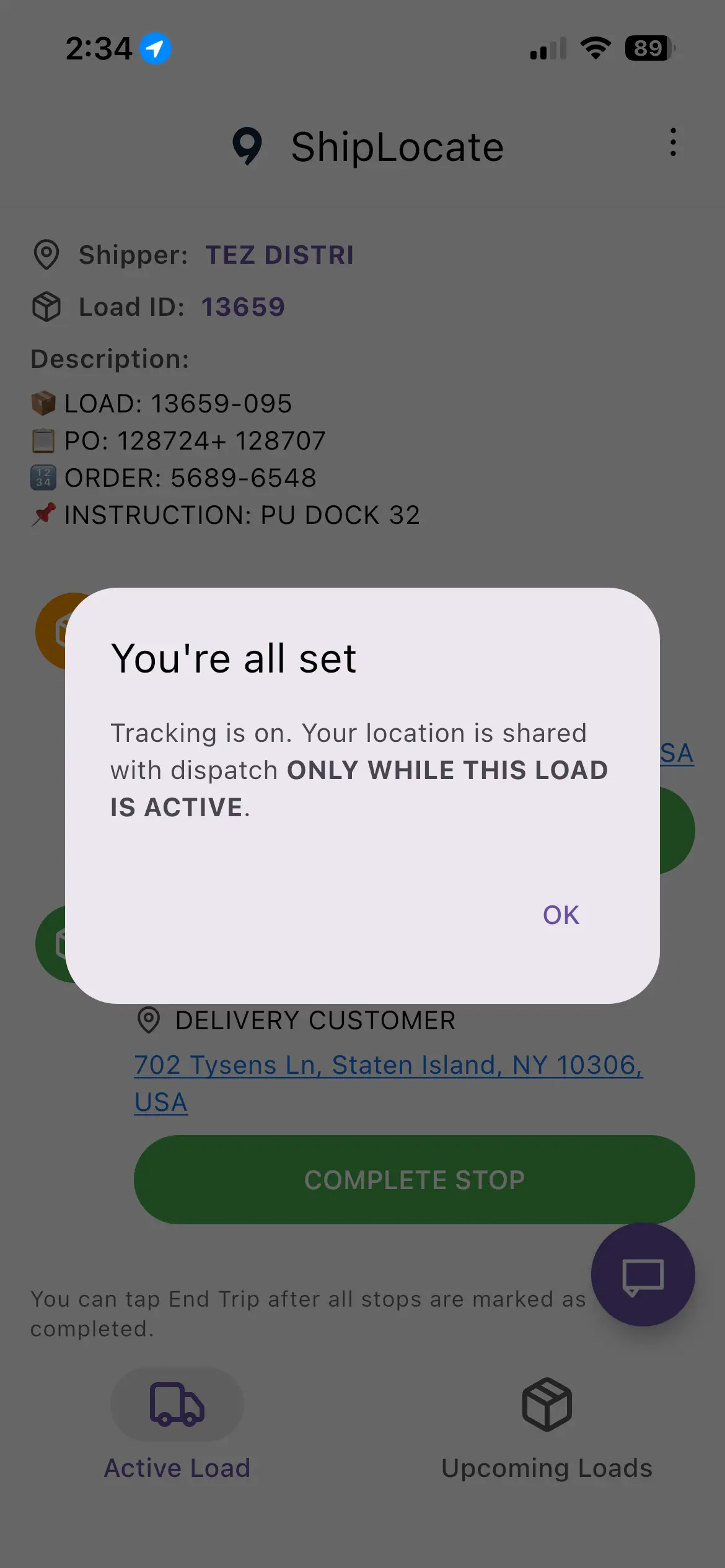
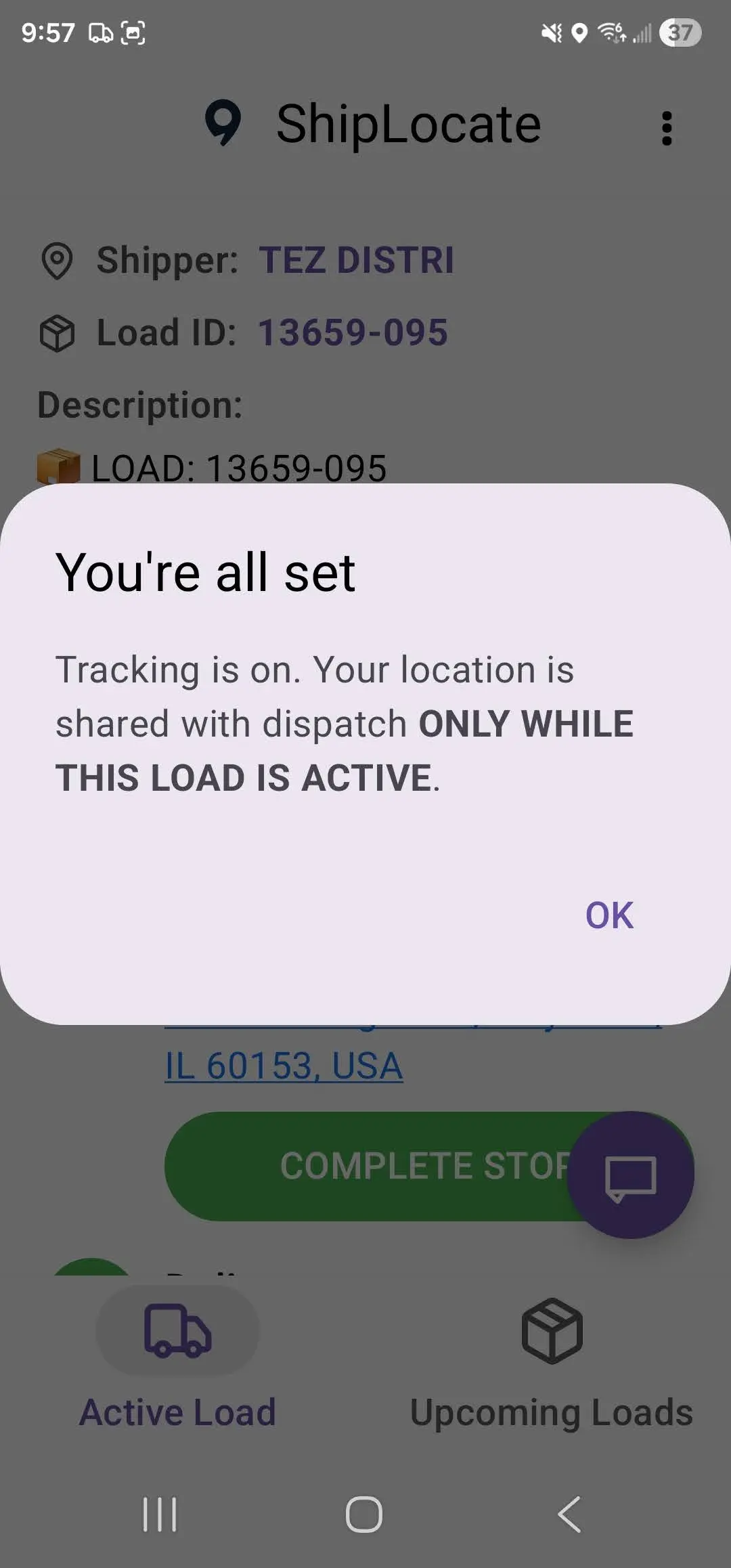
- You will see "You're all set. Tracking is on."
During the Trip
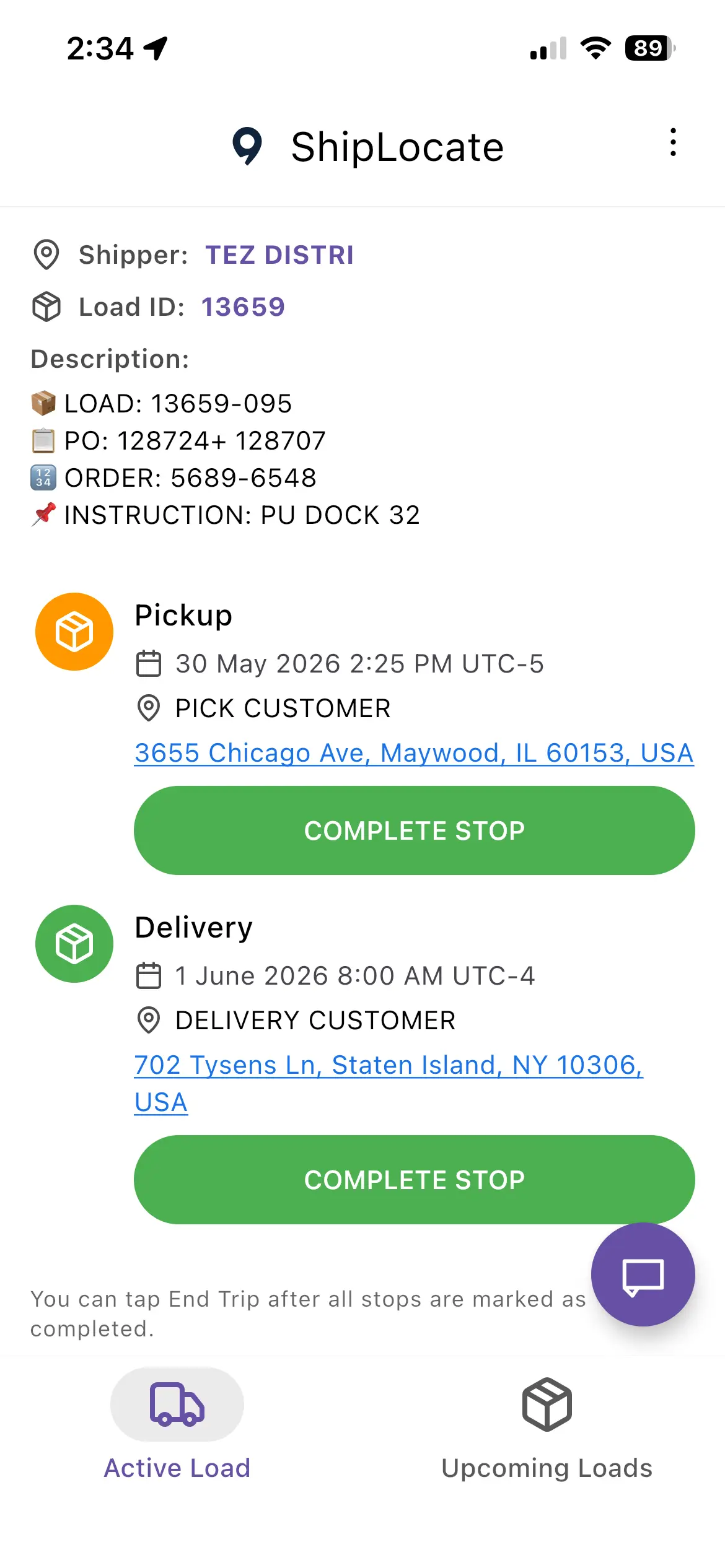
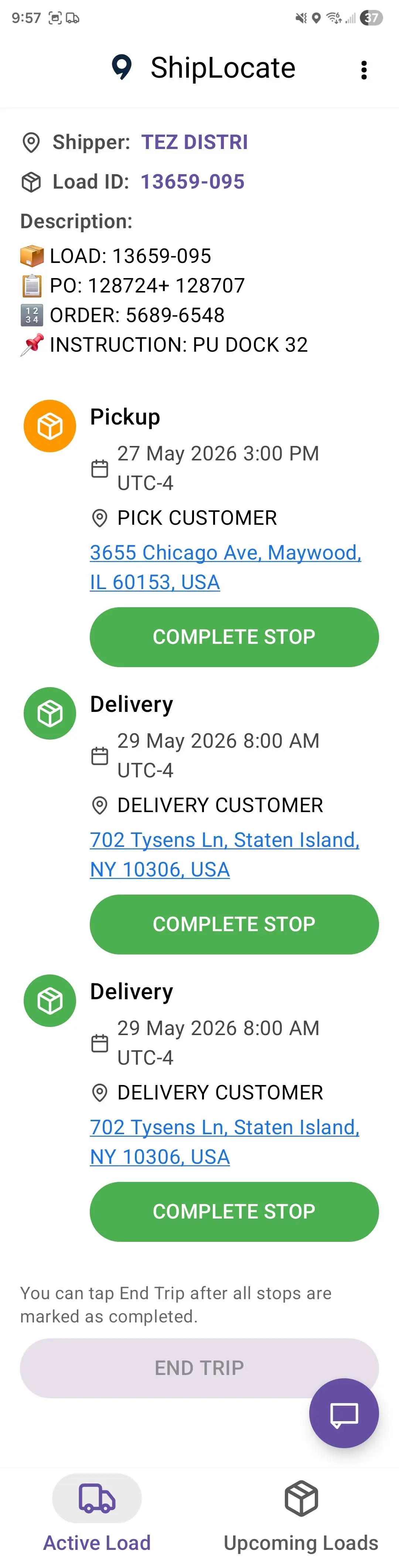
- Your active load appears in the Active Load tab
- The load shows all stops: Pickup and Delivery locations with dates and addresses
- After completing each stop, tap COMPLETE STOP
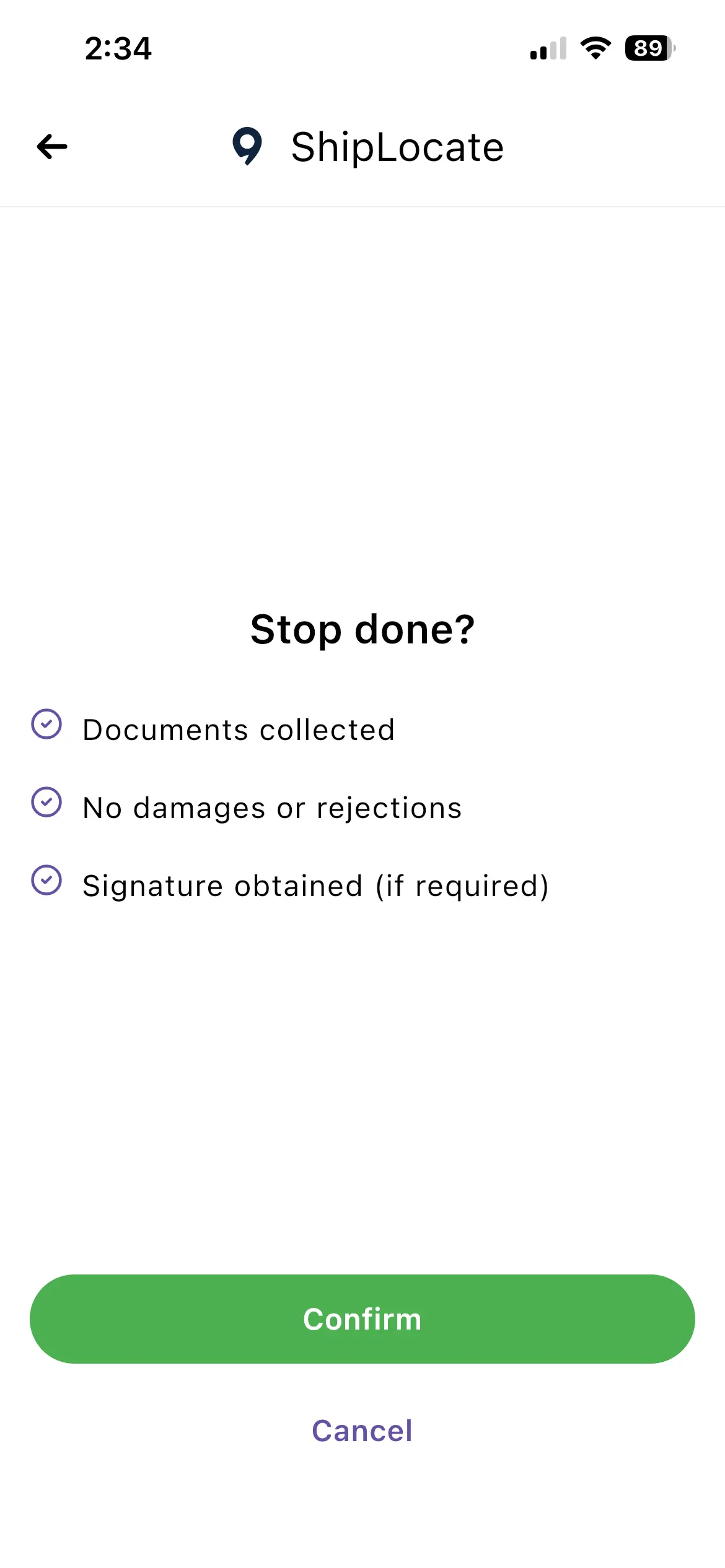
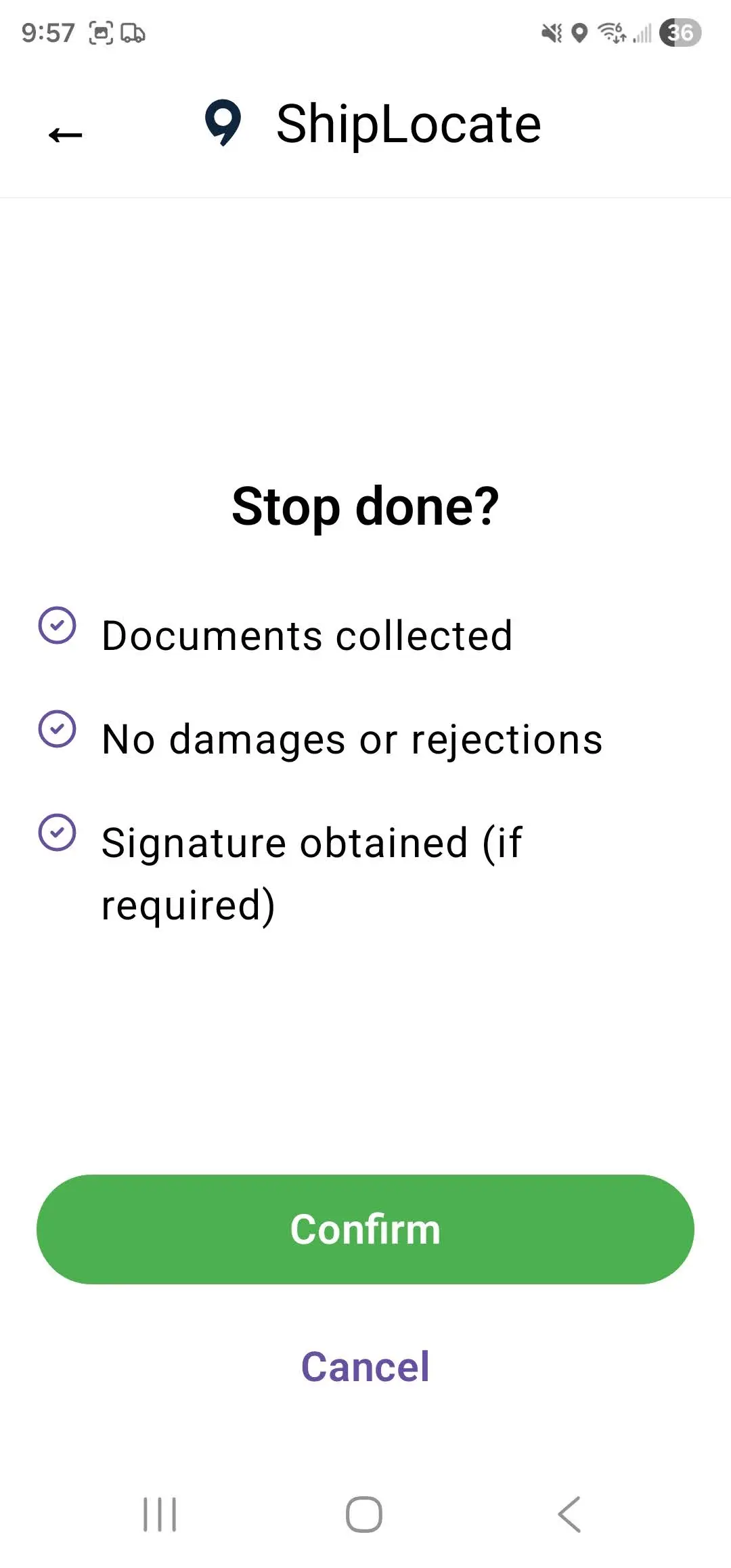
- You will see "Stop done?" - confirm: Documents collected, No damages or rejections, Signature obtained (if required) - tap Confirm
- After all stops are completed, tap END TRIP
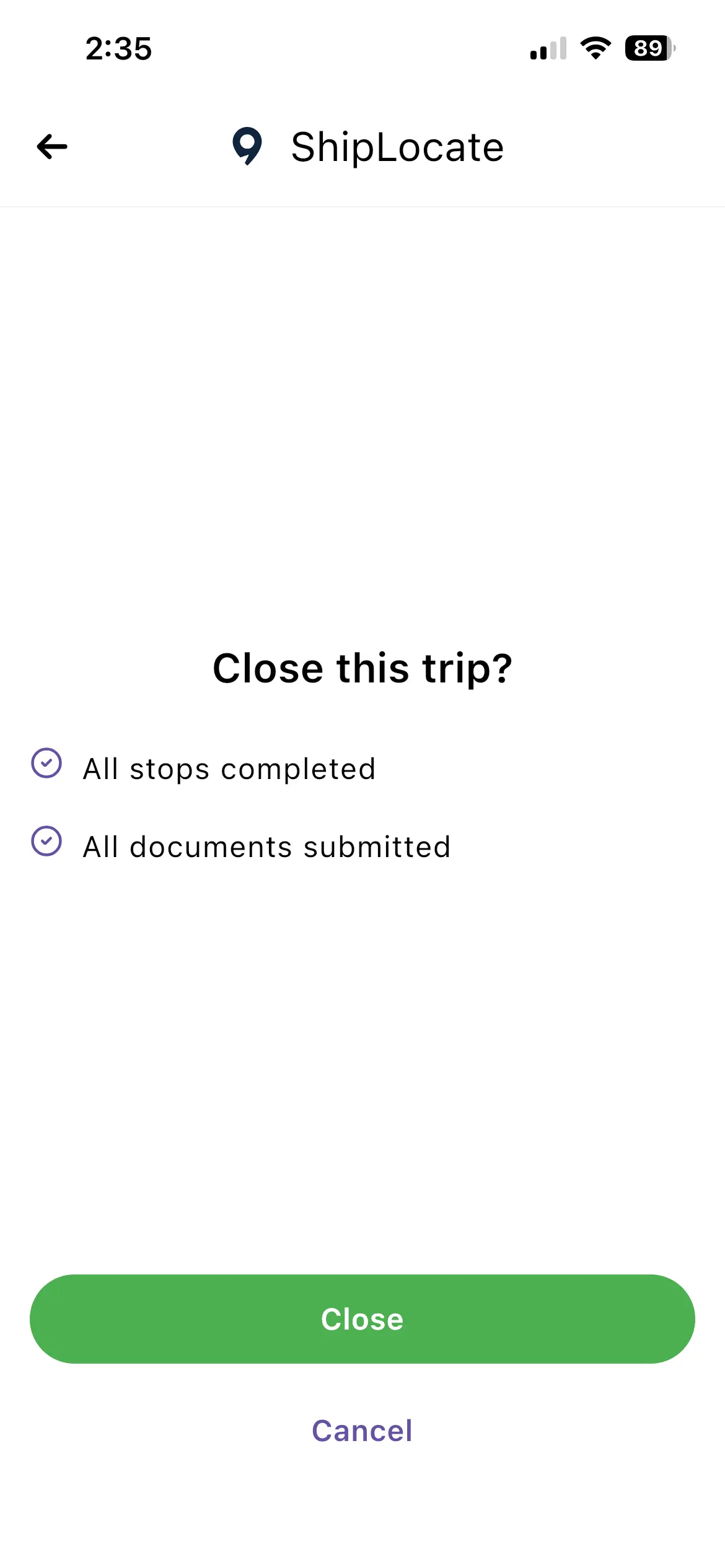
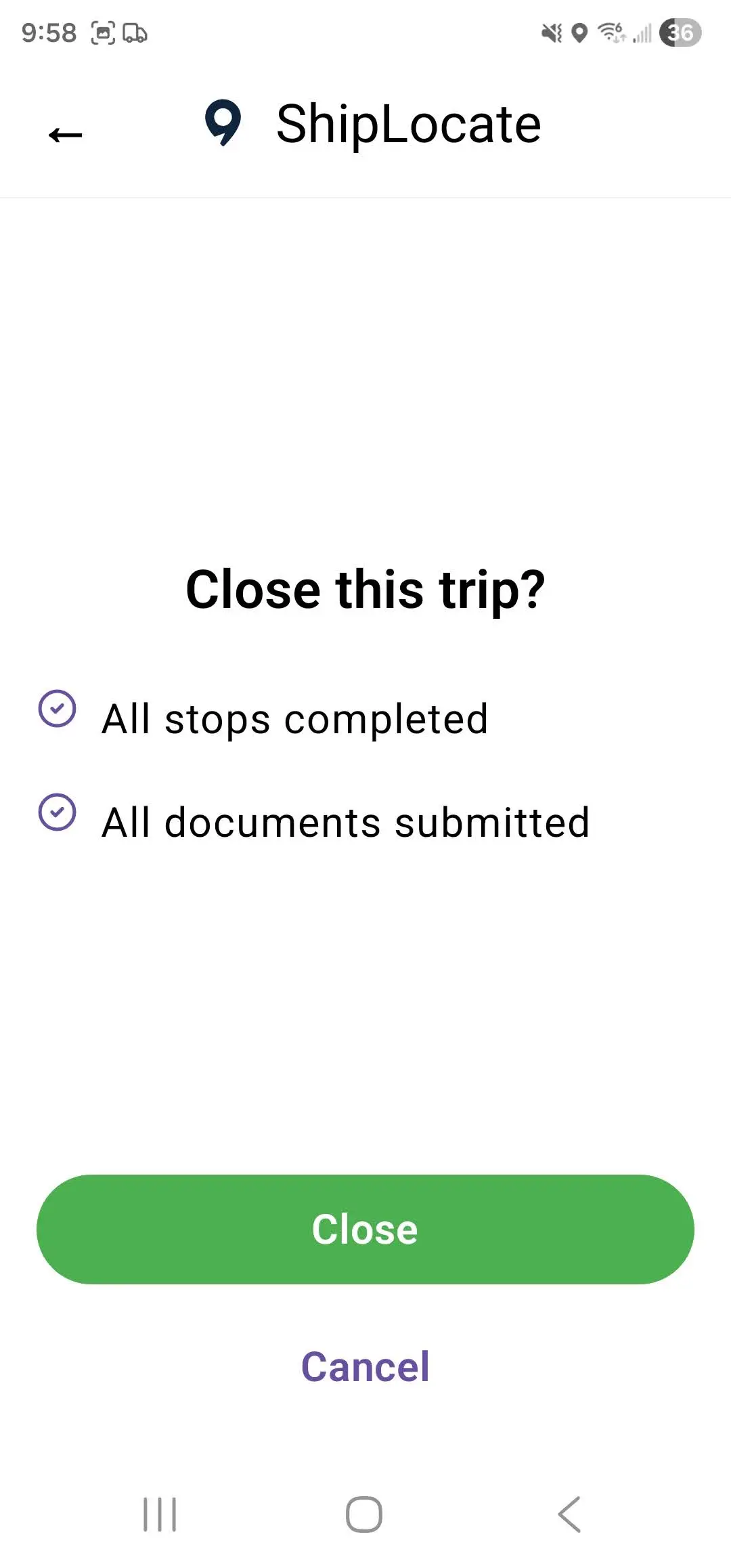
- On the final screen "Close this trip?" tap Close
- Tracking stops automatically. Your location is no longer shared.
Your location is shared with dispatch ONLY WHILE A LOAD IS ACTIVE.
Tracking stops automatically when you close the trip.
ShipLocate never monitors your location outside of active loads.
CRITICAL: Important Rules
The app will NOT work without following these rules:
- 1.Keep ShipLocate running in the background at all times
- 2.Android: DO NOT force close the app
- 3.If your phone restarts → open ShipLocate again immediately
- 4.Mobile data must be ON during the entire trip
Important Compliance Notice
Your shipper, carrier, or broker may require the use of ShipLocate for real-time tracking. Failure to properly install or use the app during a trip may result in penalties as determined by their policies.
Your location is private
Tracking is active only while the trip is open. The moment the load is closed, your location stops being shared - automatically. Your data is never sold or shared with third parties.
Questions? Visit shiplocate.com/driver or email support@shiplocate.com